How to Lock Down Your Privacy on Facebook
Scrolling through Facebook should feel fun—not like you’re walking around with your digital fly open. But the truth is, your personal information could be waving in the wind if you’re not paying attention. Privacy settings aren’t just buttons; they’re your armor. And if you don’t tweak them, someone else might peek into things you’d rather keep between friends. Most users don’t think twice before accepting whether it’s a friend request or a site offering to buy Facebook likes instantly—and that’s where the trouble begins. Let’s talk about how to tighten things up—fast.
Step One: Audit What You’re Sharing
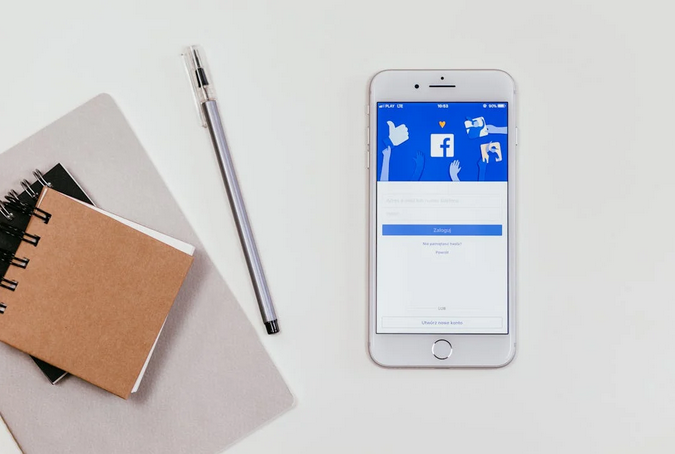
Start with your profile. What shows up to strangers? Check your “About” section—it might be leaking your hometown, relationship status, or even your phone number. Go to your profile as “View As” and see what others can see. If you wouldn’t yell it across a crowded room, maybe don’t share it publicly online. Lock that info down like your life depends on it—because sometimes, it just might.
Step Two: Tame the App and Ad Settings
 Facebook loves knowing what you like—it’s how it keeps you scrolling. But the ad settings can be sneaky. Head to your settings and find the section on ads. Disable “activity outside Facebook,” and turn off categories that describe you. That way, you’re not feeding the beast every time you browse an online store. You’ll still get ads, but they’ll be less creepy and more random, which honestly feels like a win.
Step Three: Check Friend List and Past Posts
Your friends’ list can say more about you than you think. Stalkers, scammers, and even exes might snoop through your network. Make your friend list private—it’s not a billboard. Then clean up your timeline. Use the “Limit Past Posts” option to lock down everything you once shared with the entire planet. You don’t need old posts from 2011 haunting you like a digital ghost.
Step Four: Turn on Alerts and Two-Factor
Two-factor authentication might sound boring, but it’s your first defense against weird logins. When someone tries to get into your account, you’ll know. Activate login alerts so you’ll get pinged if anything fishy happens. You can also pick trusted contacts in case you ever get locked out. Don’t rely on one password to guard everything—it’s like putting a padlock on a cardboard box. A little friction can save you a big headache.
Locking down your Facebook privacy doesn’t have to feel like learning a foreign language. It’s more like tidying up your digital house before guests arrive. You decide who gets to sit at the table and who stays on the porch. Taking a few minutes to review your settings can save you from future drama, spam, or worse. You don’t need to become a cybersecurity expert. Just stay curious, stay cautious, and remember: on Facebook, what you don’t hide can—and probably will—be used.